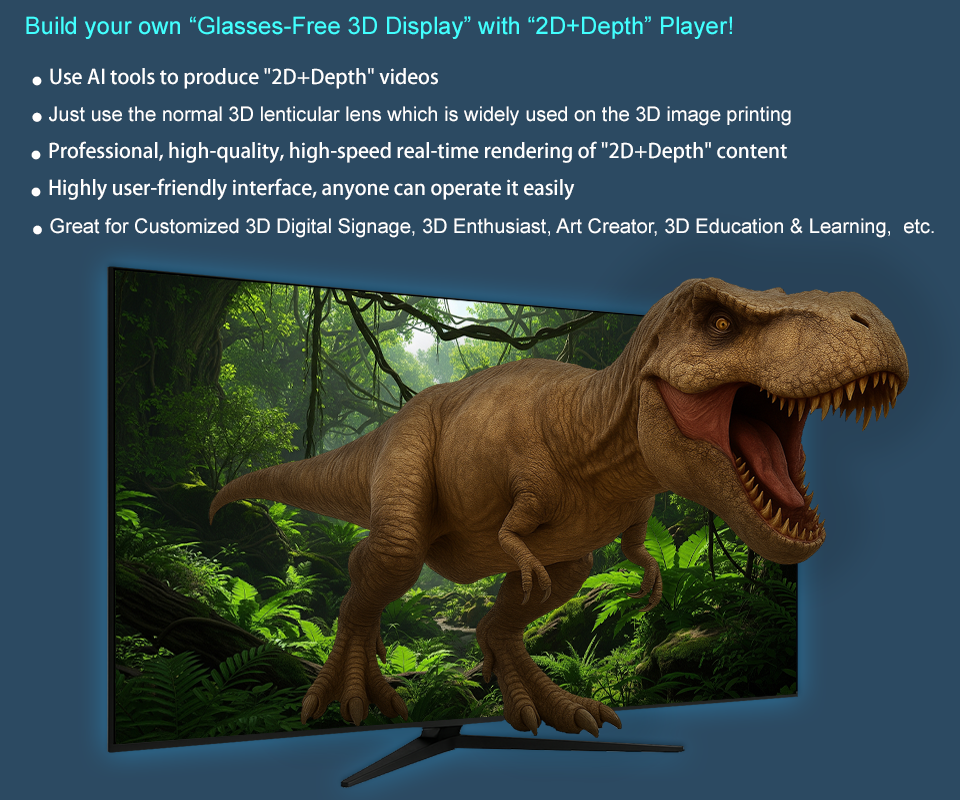
The final mile of AI content creation: i-Magic3D Player!
Once AI solves the most challenging problem of depth map creation, i-Magic3D Player will solve the problem of "Glasses-Free 3D Display"!
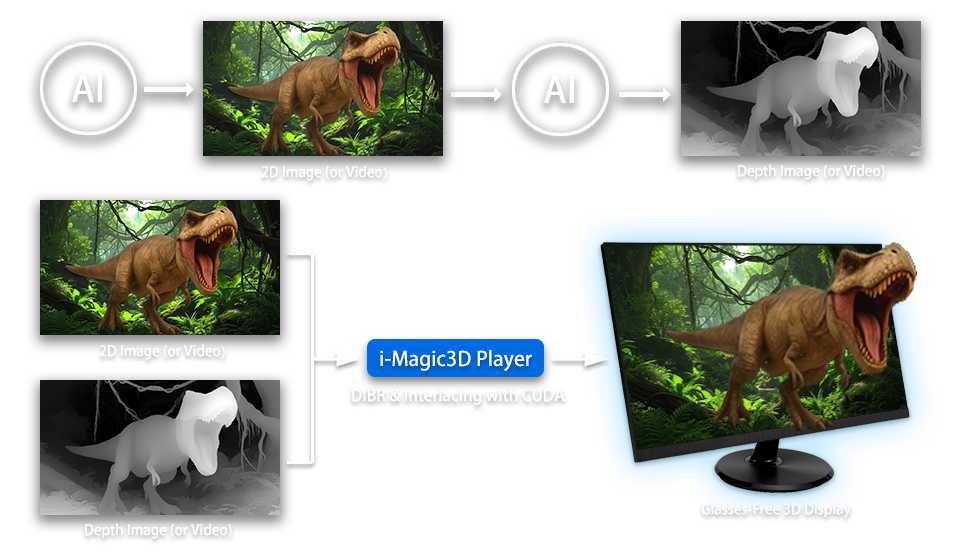
Ushering in a new era of 3D vision: simple, fast, and professional!
i-Magic3D Player is a 3D content playback tool tailored for "Glasses-Free 3D Display". It can instantly convert 3D content in "2D + Depth" (Side-by-Side) format into multi-view 3D images and present vivid stereoscopic 3D visual effects through any AMOLED/OLED/LCD display with a normal 3D lenticular lens.
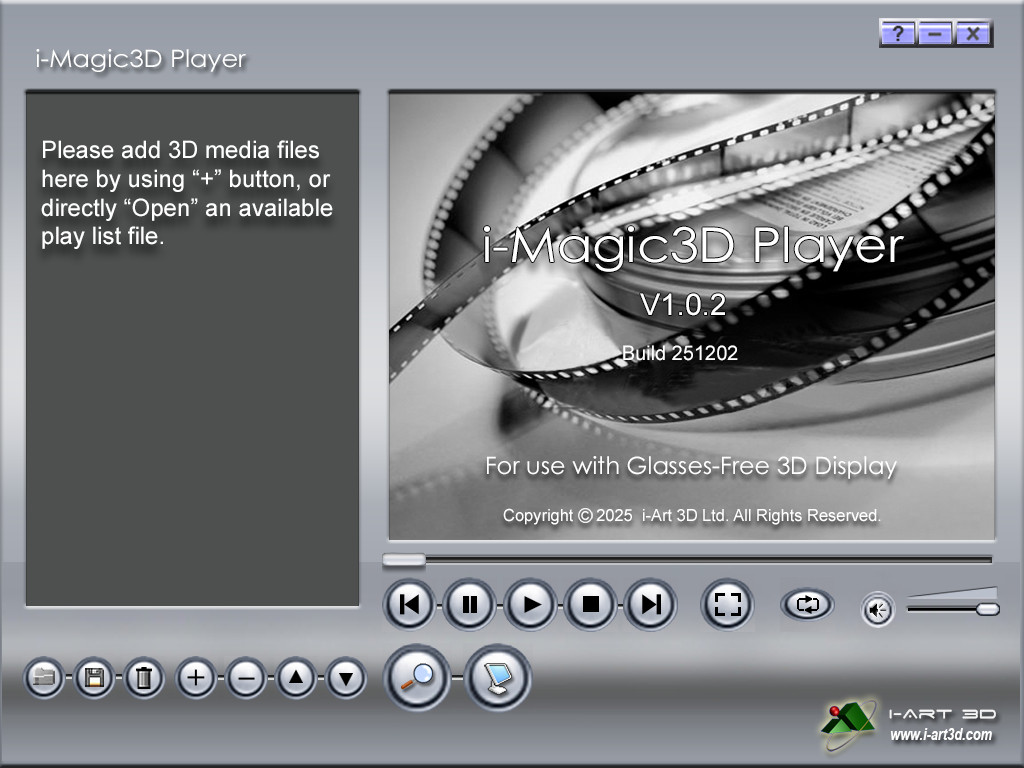
- Simple and easy to use, quick to learn
Simply enter the size and resolution of your AMOLED/OLED/LCD display panel (monitor, laptop) and the LPI value of the 3D lenticular lens, and i-Magic3D Player will automatically complete all the complex engineering calculations and rendering processes, allowing you to focus on creative presentation!
- Compatible with commercially available hardware, low cost
i-Magic3D Player supports any readily available 3D lenticular lens and AMOLED/OLED/LCD display panel (or any Glasses-Free 3D Displays on the market), allowing you to easily assemble your own Glasses-Free 3D Display without the need for expensive dedicated equipment.
- AI tools convert to high-quality "Depth Map"
After using mature AI tools on the market (such as After Effects Plugin software: Depth Scanner、Quick Depth) to create a high-quality "Depth Map", it is then converted into an MP4 video in "2D+Depth" (Side-by-Side) format along with the original 2D image (or video).
- Real-time rendering for a smooth 3D experience
Inputting an MP4 video in "2D+Depth" (Side-by-Side) format into i-Magic3D Player, it will render multi-view 3D images in real time, bringing an immersive visual experience and perfectly presenting the stereoscopic 3D effect.
- Wide range of applications
Whether for personal entertainment, product demonstrations, educational presentations, advertising and marketing, or creative design, i-Magic3D Player can add a unique 3D charm to your projects.
Build your first "Glasses-Free 3D Display":
Step 1
- Prepare 3D lenticular lens:
- 20LPI ~ 50LPI (25LPI with 4mm of thickness available in markets is highly recommended for 15.6" ~ 24" 2K/4K display.)
- Thickness > 1mm; The thicker 3D lens, the better 3D depth is.
- Hologram Effect: 25LPI ~ 40LPI, AMOLED/OLED/LCD panel of larger than 300 PPI, or 20LPI ~ 25LPI, 15.6" (or smaller) AMOLED/OLED/LCD panel with 3840x2160 (or higher) resolution
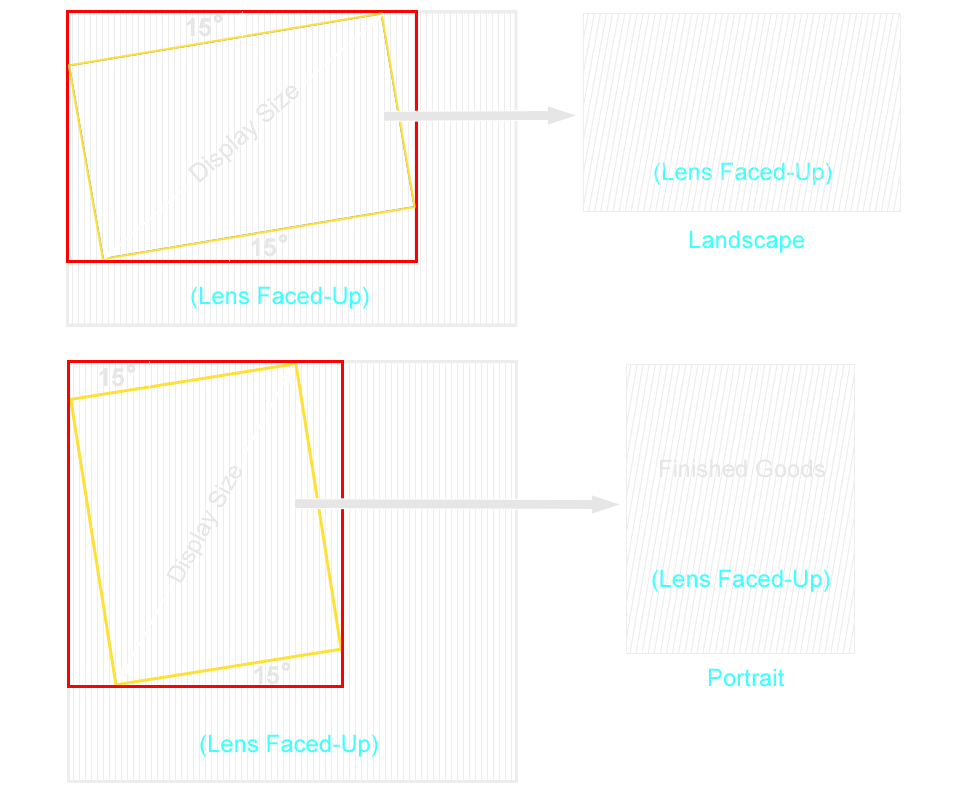
- According to AMOLED/OLED/LCD display size, cut out the 3D lens at slanted angle of 15 degrees (or other slanted angles) as follows.
Step 2
- Choose AMOLED/OLED/LCD Panels (Any Size, Any Resolution):
- AMOLED/OLED/LCD Monitor
- Laptop PC
- Others
Step 3
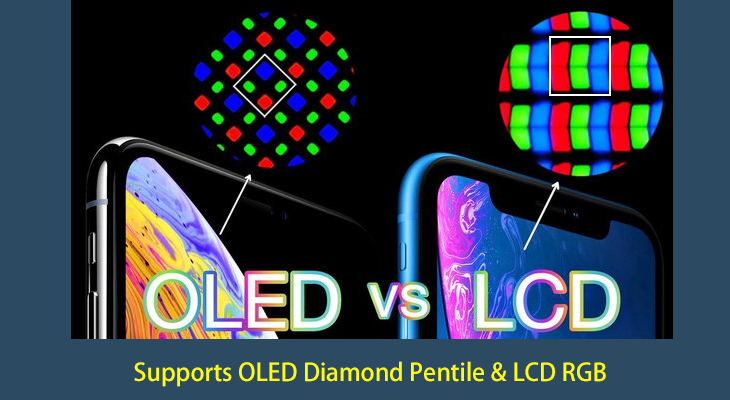
Choose an appropriate RGB arrangement:
- AMOLED/OLED Diamond Pentile
- Most of the high-end display panels and high-end laptops on the market currently use Diamond Pentile format or similar arrangement formats.
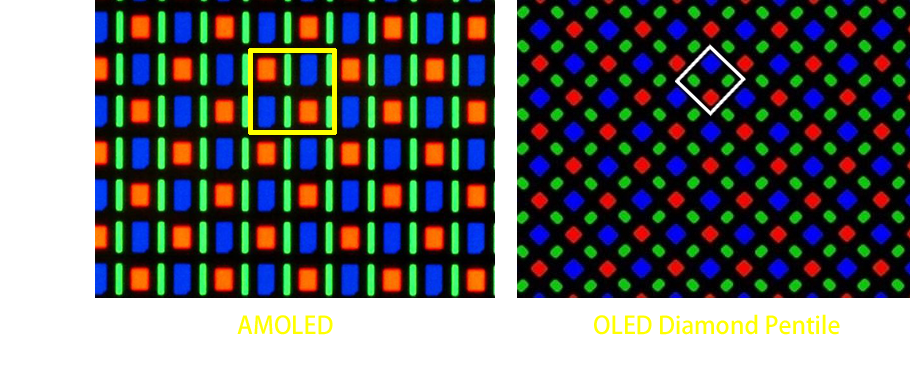
- LCD RGB Sub-Pixel
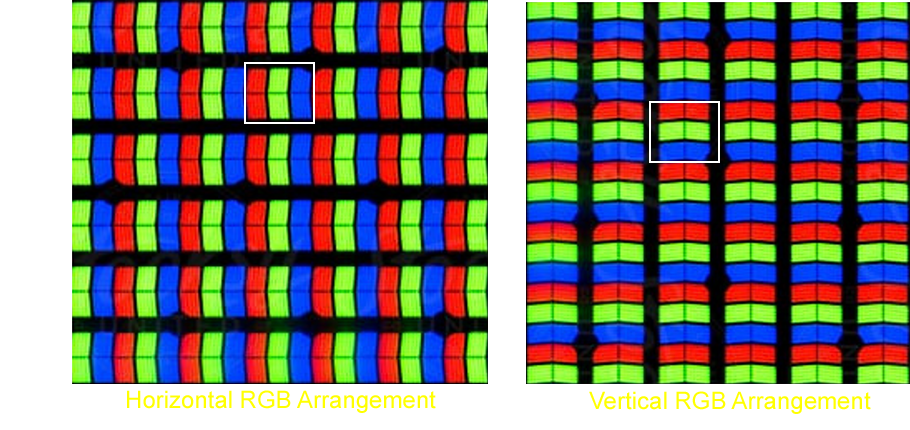
- The RGB sub-pixel arrangement of most LCD screens currently on the market for laptops and monitors adopts the standard RGB (Red, Green, Blue) horizontal (or vertical) arrangement.
- Depending on your needs, you can choose a horizontal RGB arrangement for landscape or a vertical RGB arrangement for portrait; on contrary, generally mobile phones use a horizontal RGB arrangement for portrait, vertical RGB arrangement for landscape.
- The RGB sub-pixel arrangement of most LCD screens currently on the market for laptops and monitors adopts the standard RGB (Red, Green, Blue) horizontal (or vertical) arrangement.
Step 4
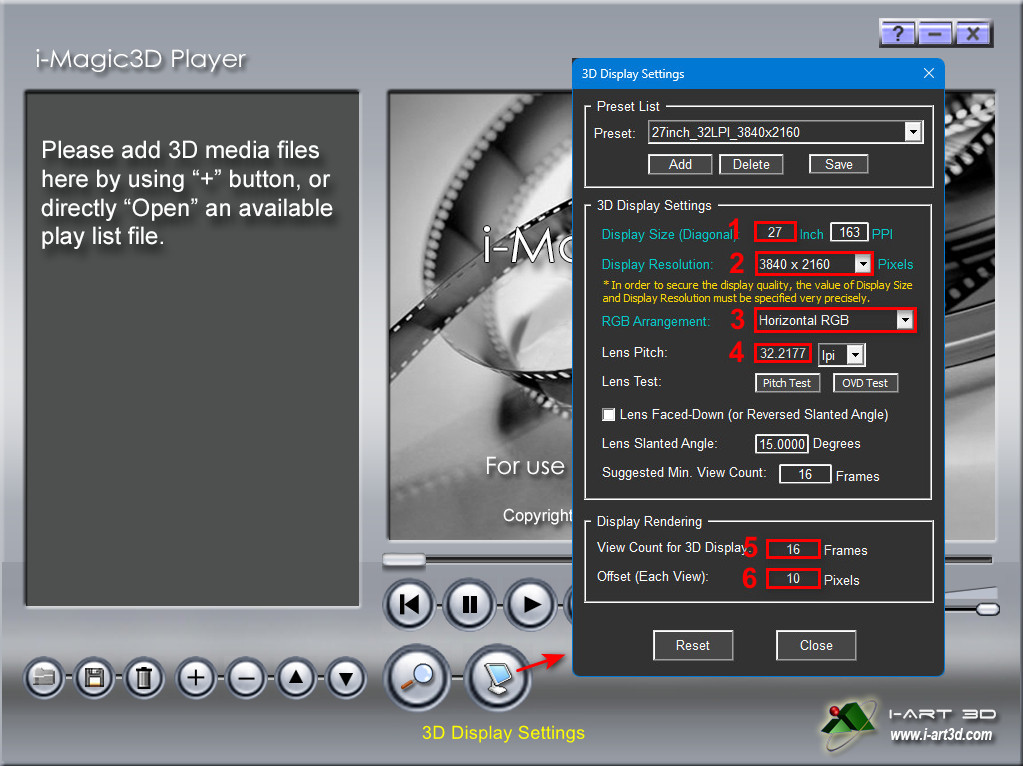
- Next, based on the specifications of the lenticular lens and AMOLED/OLED/LCD panel used, we need to set the parameters for "Glasses-Free 3D Display".
- To open "3D Display Settings" in i-Magic3D Player, you only need to...
- To open "3D Display Settings" in i-Magic3D Player, you only need to...
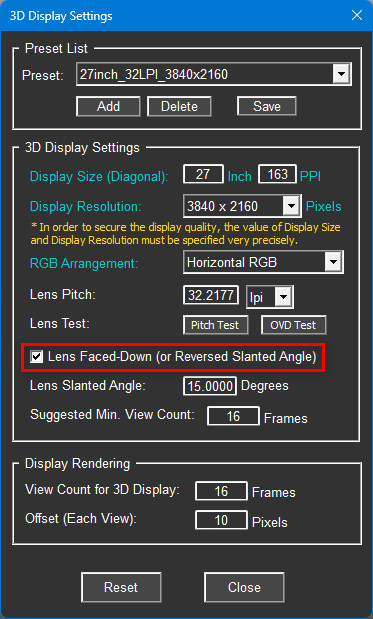
- Enter the "Display Size" of the AMOLED/OLED/LCD panel. This value must be very precise. Please refer to the technical specifications of the display panel you are using.
- Select "Display Resolution" which is your AMOLED/OLED/LCD panel's native resolution.
- Select "RGB Arrangement". Normally, it will be "Horizontal RGB" if you are using LCD panel.
- Enter the "Lens Pitch" for the lenticular lens. You can check this using the "Pitch Test" under "Lens Test" below.
Note: If needed, you can also adjust the "Lens Slanted Angle" below to fit the 3D lenticular lens's cutting angle. - Enter the value of "Suggested Min. View Count" into "View Count for 3D Display," or enter it according to your preference.
- Finally, set the offset for each view. This value can be adjusted based on the actual 3D display effect.
Step 5
- Attaching the 3D lenticular lens to the display panel (two methods):
Note:
Before installing the 3D lenticular lens, please make sure that there is no Anti-Reflective film, protective film, etc. on the display panel to avoid causing the 3D lenticular lens to lose focus.
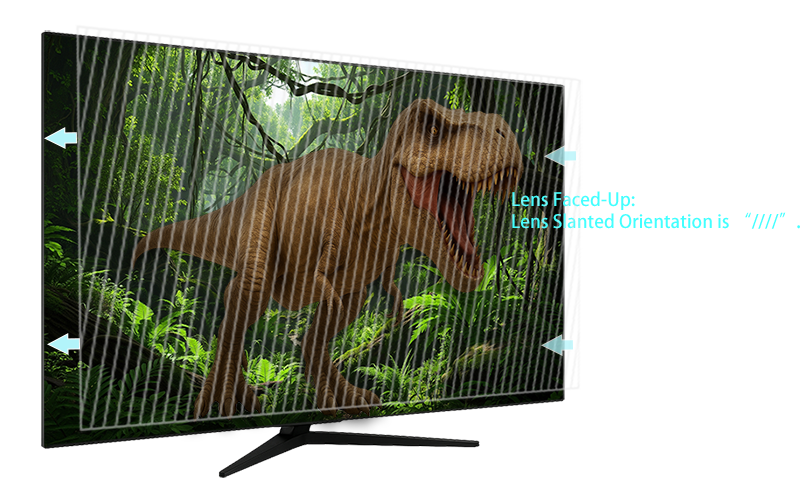
- Lens Faced-Up:
Most of case, put the lens side of the 3D lenticular lens up and attach it closely on the display panel. If it is just for testing purposes, you can temporarily use stationery clips to clamp the four corners of the 3D lenticular lens for use.

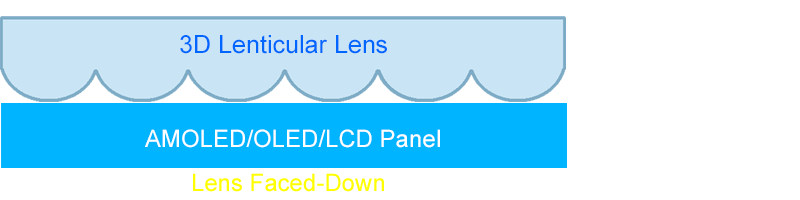
- Lens Faced-Down with Air Gap:
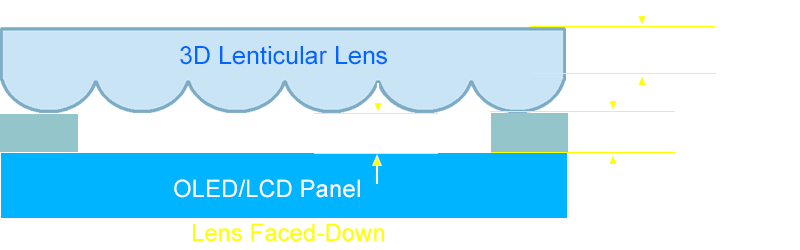
If a clear 3D image cannot be obtained using the "Lens Faced-Up" method, this method must be used: Flip the original 3D lenticular lens over so that is the "Lens Faced-Down". If a clear 3D image still cannot be obtained, then an "Air Gap" must be added between the display panel and the 3D lenticular lens.
Such an "Air Gap" MUST be little less than the thickness of 3D lenticular lens. It might need to be adjusted until it can get the best focus on your display panel.
Usage steps:
1. At first, place the lenticular lens faced-down the display panel to view 3D.
2. If a clear 3D image cannot be obtained, then add an "Air Gap" between the display panel and the 3D lenticular lens.
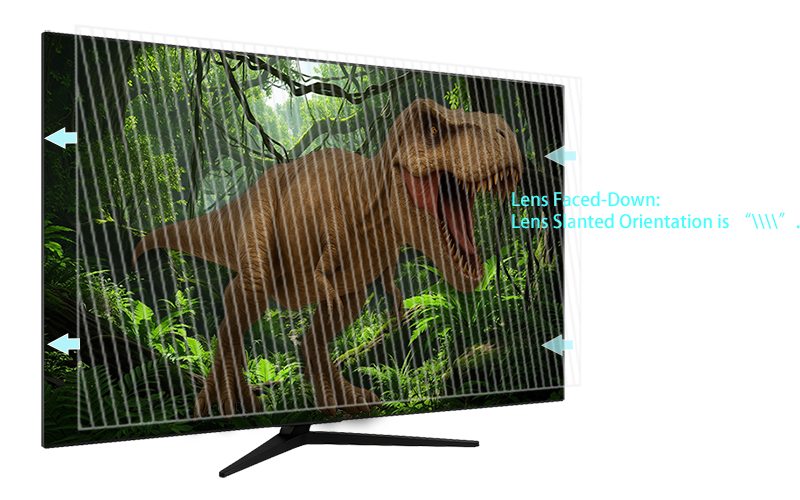
- Then, check "Lens Faced-Down" (or Reversed Slanted Angle)" as follows.
- Lens Faced-Up:
Finally, let's take a look at the result ...
Product Features/Specifications:
- Supports multi-view interweaving algorithms based on "RGB Sub-Pixel", "RGB Pixel" and AMOLED/OLED Diamond Pentile.
- Supports slanted lenticular lenses to eliminate interference patterns caused by "Black Matrix" and "Moire" during 3D display.
- Supports any 3D lenticular lens available on the market.
- Supports "Pitch Test" and "Optimal Viewing Distance Test" for lenticular lenses on AMOLED/OLED/LCD panels to obtain more accurate pitch values for interlacing.
- Supports adjusting the "Lens Slanted Angle" to ensure that the accuracy of the "interlacing and mapping" can be fully adapted to the cutting angle of the 3D lenticular lens.
- Supports both landscape and portrait display modes on the same display panel.
- Supports most 16:9/16:10 2K and 4K AMOLED/OLED/LCD display panels.
- All you need to do is prepare 3D content in "2D+Depth" format, and it can be played on AMOLED/OLED/LCD display panels of different sizes.
- Supports over 64 views (depending on your NVIDIA graphics card), high speed (30fps or 24fps), full-screen resolution, high quality, and real-time playback.
- Supports 3D still image playback.
- Supports multi-core and multi-thread CPUs.
- During 3D content playback, the "Offset" (i.e. 3D depth) can be adjusted at any time.
- Supports mixed playlists of "3D images" and "3D videos".
- User-friendly and intuitive interface.
- Anyone can easily and quickly build their own "Glasses-Free 3D Display" at a very low cost with i-Magic3D Player.
Basic System Requirements:
- Intel Core i7 4-Core/8-thread 2.5GHz (or higher)
- System RAM 16GB (or more)
- Display resolution 1920x1080 pixels (or higher)
- NVIDIA GeForce GTX 950 (or higher) graphics card
(Note: This must be installed in order to use CUDA for real-time high-speed DIBR and multi-view interweaving!) - AMOLED/OLED/LCD Panels: AMOLED/OLED/LCD Monitors/Laptops
- Windows 10/11 (64-Bit)
Trial Version:
Purchase i-Magic3D Player:
- Product Contents: Portable Version, Encrypted Software (including one password for one PC use)
- Unit Price: $350 USD
Notice:
Before you order, please make sure that you have fully tested the software. Once you have purchased it, there are no refunds.
Order:
1. Purchasing with Tele-Transfer via bank:
- Bank Name:Bank of Taiwan, Peitou Branch
- SWIFT CODE:BKTWTWTP036
- Bank Address:No. 152, Sec. 1, Chung Yang S. Rd. Peitou Dist., Taipei, Taiwan
- Account Name:i-Art 3D Ltd
- Account Number:036-007-064553
2. Purchasing with PayPal or Credit Card:

